External tools (MCP)
Connect an MCP server and the assistant can call its tools mid-conversation.
MCP (Model Context Protocol) is an open standard for handing an AI a set of actions it can run. A program that speaks it — an MCP server — publishes its actions as tools at a single web address: check stock, look up an order, read a row from a table. Connect that address here and those tools become things your support assistant can call while it is answering a customer.
Tip: Nobody has built you an MCP server? Skip this page — the assistant is complete without it. If you have an API but no MCP server, Data Actions is the shorter road.
Pommy sits on both sides of this standard, which is worth getting straight before you read on. This page is the side where Pommy is the client: your support assistant uses somebody else's server. The other side — your coding agent using Pommy as its server — is Coding Agents, and the two have nothing in common but the name.
Before you start#
- A running MCP server the public internet can reach, at its full endpoint address — something like
https://tools.example.com/mcp, path included. - Streamable HTTP. That is the transport Pommy speaks: it posts a request to your address and reads the reply. A server built for the older two-endpoint SSE style will not connect, whichever option you pick in the dropdown.
- Whatever your server needs to trust the caller — in practice a token you send in a header.
- Room in your plan. How many MCP servers a project may have is a plan limit, and the Free plan includes none. Over the limit, adding one fails with a message naming the limit.
Adding a server#
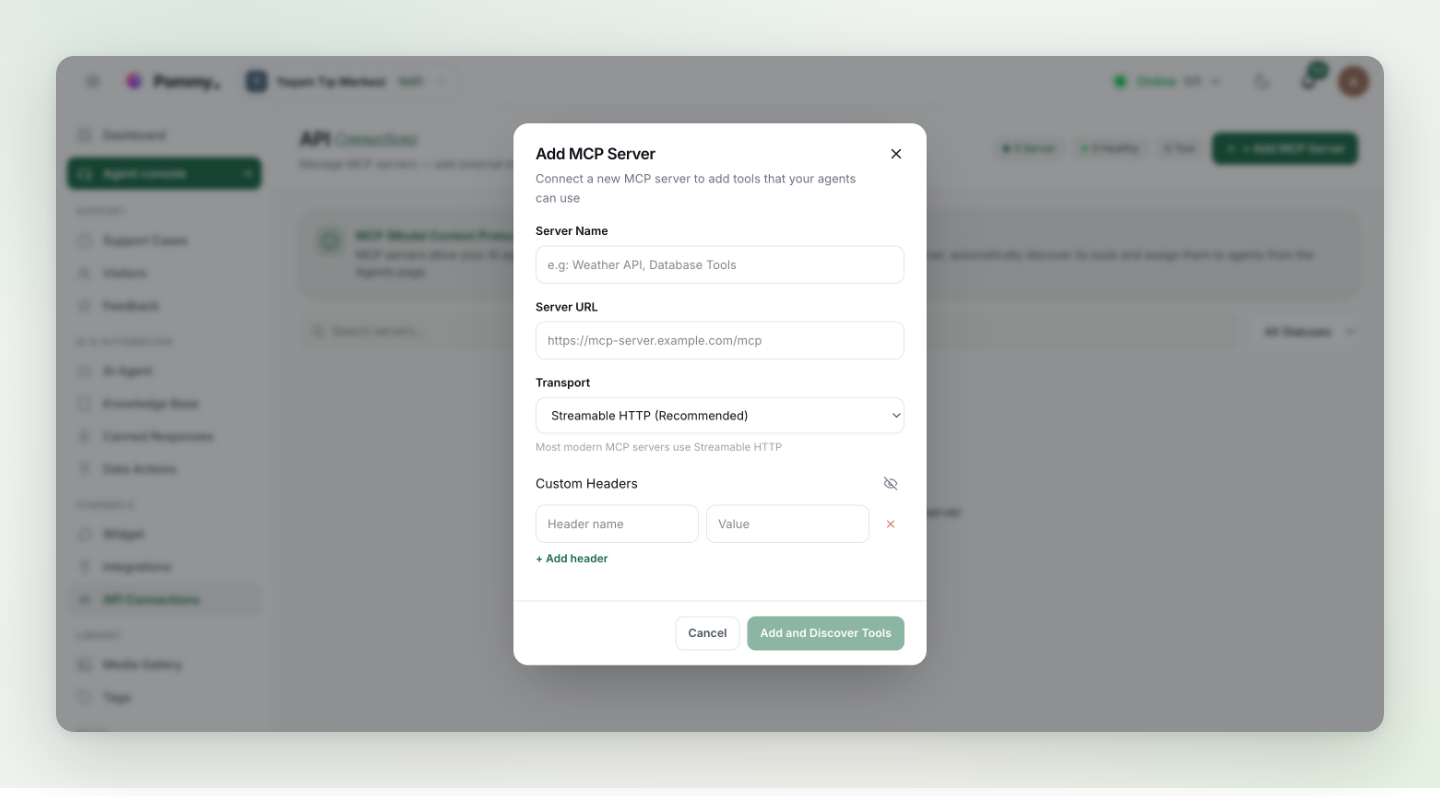
- Open API Connections
API Connections in the left menu, then Add MCP Server.
- Name it and paste the address
The name is only for you — "Order API" is enough. The Server URL is the endpoint your server documents, path and all. Leave Transport on Streamable HTTP.
- Add the headers it needs
Custom Headers takes any number of name/value pairs, and Pommy sends them with every single request — an
Authorizationheader holding a bearer token is the usual case. There is no separate token field; a header is how you authenticate. Values are masked, and the eye icon reveals them. - Add and Discover Tools
Pommy connects right away and asks the server what it can do. Open the new row and you'll see the tools it found, each with the description your server gave it. An empty list means the server could not be reached, or it exposes no tools.
- Give it to an assistant
A new server is attached to no assistant yet, so nothing has changed for your customers. The next section does that part.
Warning: Internal addresses are refused. Pommy calls your server from its own servers, not from inside your network, so the address must be one the public internet can reach. Saving is blocked for localhost and 127.x, the private ranges 10.x, 172.16–172.31.x and 192.168.x, link-local 169.254.x, the cloud metadata address, and the IPv6 equivalents — you get Invalid MCP server URL and the reason. A server running on your own machine or office network has to be published, or tunneled to a public address, before Pommy can use it.
Turning tools on for an assistant#
Tools are switched on per server, per assistant. Open AI Agent, edit the assistant and go to the MCP Tools step: it lists the project's servers with a health dot and a tool count. Tick the ones this assistant may use, and save.
Ticking a server gives the assistant every tool on it — there is no per-tool switch. If an assistant should only reach some of your tools, expose those on a second server and connect that one instead.
Two switches have to be on for a tool to reach a conversation: the server's own Active switch on API Connections (the pause button on its row), and the tick on that step. Pausing a server takes its tools away from every assistant at once and keeps the assignments for when you turn it back on.
What the assistant is told#
For each tool the assistant gets the name, the description and the parameter list exactly as your server reports them — Pommy adds no explanation of its own. So the description on your server is the whole instruction the assistant ever gets about when to use the tool. Write it as a sentence about the situation ("Returns the current status of an order, given its order number"), not as API reference.
What comes back goes to the assistant, not to the customer: it reads the result and writes the reply in its own words. Your team sees the call, its result and how long it took in the Agent console while the conversation runs.
Names have to be distinct. A tool named like one of Pommy's own — search_knowledge_base, book_calendar_appointment, transfer_to_human and the rest — is dropped without a word, and two connected servers exposing the same tool name are indistinguishable to the assistant. Prefix yours if you are unsure.
Warning: A tool the assistant may call is a tool it may call on a customer's behalf, with the credentials you gave the server and nobody's approval in between. Start with read-only tools and expose nothing that writes, refunds, cancels or deletes until you have watched the read-only ones behave. And note the token in your headers is the same for every visitor — your server cannot tell one customer from another, so no tool here should return personal data from an identifier alone. For answers that belong to one specific customer, use Data Actions: a group there can require a verified visitor.
Keeping an eye on it#
The API Connections list gives each server a row: name with a health dot, address, transport and tool count, health status and the date of the last check. Clicking the row opens it — the headers (editable), the assistants using it, the full list of discovered tools, and four actions.
- Refresh Tools — asks the server what it can do again and replaces the stored list. This is the only thing that updates it: nothing re-discovers on a schedule, so a tool you add on your side stays invisible to Pommy until you press this.
- Health Check — a quick "are you answering" probe. It says nothing about whether an individual tool works.
- Pause — takes the server's tools out of every conversation without deleting anything.
- Delete — removes the server and frees the slot in your plan.
Healthy means the last check reached your server and found tools. Unhealthy means it came back empty or failed. Unknown means nothing has been checked yet. The status is never more detailed than that — when something is wrong, the reason is on your server's side, in its own logs.