Showcase cards
The right card opening in chat when a customer asks.
The showcase is where you define your products and services as visual cards; you manage them on the Showcase tab of the Knowledge Base page. When a customer asks about something relevant, the assistant shows the matching cards next to its answer: an image, a title, a short description and a link that opens when the card is tapped.
How does the assistant pick cards?#
- A precise question gets one card — "How much is teeth whitening?" brings only that service's card, not the whole catalog.
- A broad question gets a selection — for "what do you offer?" it shows a set of highlights and mentions the total count.
- Cards match the answer — whatever the assistant is talking about is what appears; unrelated cards don't sneak in.
Adding a link to a card#
Every card has a Product URL field: the address of that product or service's page on your site. When the customer taps the card's button in chat, this address opens — that's the jump from conversation to sale or detail page.
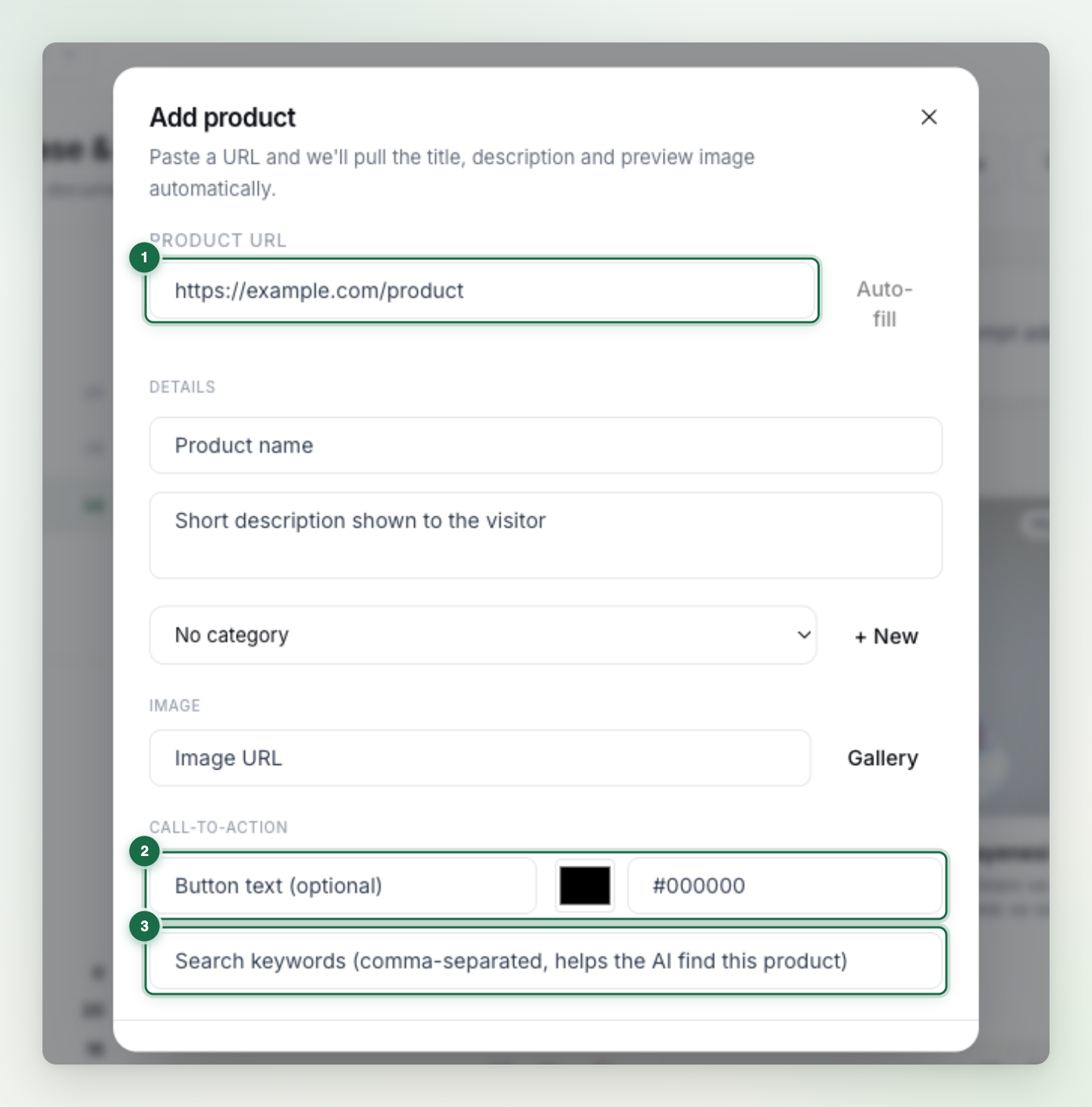
- Auto-fill — paste the address while adding a card; the title, description and preview image are pulled from the page automatically. Edit anything by hand afterwards.
- Button text and color — customize the card button's label (e.g. "View", "Book now") and color per card; leave them empty to use the defaults.
- Search keywords — add comma-separated words customers might use when asking about this product; they strengthen the assistant's card matching.
Warning: Test the link before you rely on it: a broken Product URL sends the customer to a dead page and costs you trust.
For a showcase that works#
- Write clear titles — use the name customers would search for; keep abbreviations and internal jargon off the card.
- Put distinguishing details in the description — the assistant finds the right card through these texts.
- Fill in fields like price and duration — "price question → card + exact number" is the best experience.
- Keep image links reachable — a card with a missing or broken image renders empty in chat.
Tip: After setting up the showcase, try three question types in the widget: a single-product question (one card should come), a broad "what do you have?" (a selection should come) and a price question (card + number should come).