Agent console
The live screen: lists, taking over, the customer panel, daily tools.
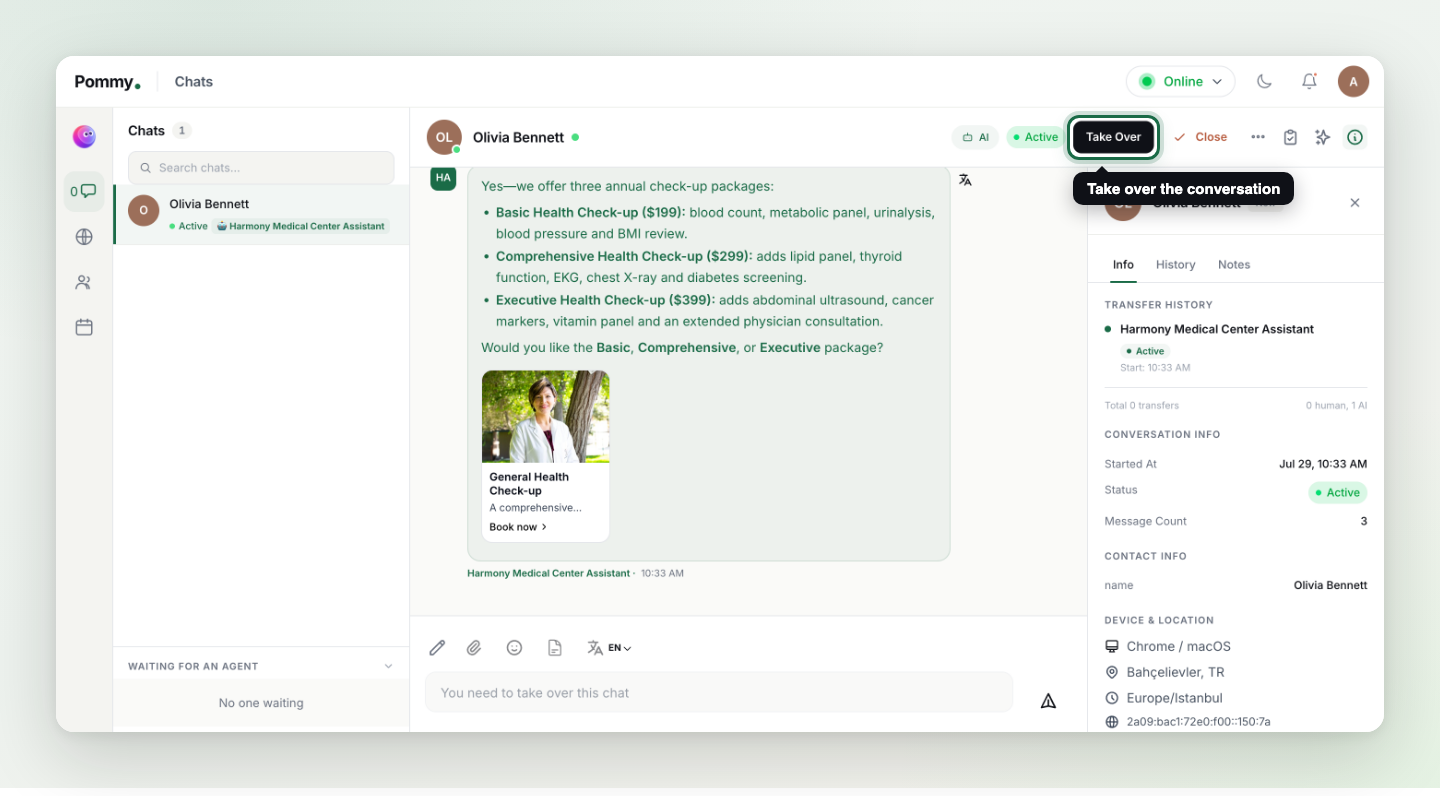
The Agent console is your team's live-support screen: conversations on the left, the selected chat in the middle, customer details on the right. This is where you watch the assistant work and step in when you want to. The icons on the far-left rail switch between the console's four views: Chats, Visitors, Agents and Calendar.
Finding conversations: lists and filters#
The Visitors view lists everyone on your site with quick filters across the top:
| Filter | What it shows |
|---|---|
| All Visitors | Everyone currently or recently on your site, with their location and current page. |
| All Chats | Every conversation, whoever is handling it. |
| My Chats | Only the conversations assigned to you. |
| Closed Chats | Finished conversations — open any of them with View Chat. |
| AI Chats | Conversations the assistant is handling on its own. |
| Custom Filter | Build your own combination. |
Taking over, closing, converting#
- Take Over — the assistant goes quiet and the chat is fully yours. The composer reminds you: you must take over before you can type.
- Close — ends the conversation; the customer is asked to rate the experience (see Feedback below).
- Convert to Support Case — turns the conversation into a tracked case for work that can't be finished in chat (details on the Support cases page).
- Ban — from the Visitors view you can block an abusive visitor for 24 hours, 7 days or permanently.
The right panel: Info, History, Notes, Appointments#
- Info — name and phone from the pre-chat form, transfer history (which AI or human handled it), device, location and time zone, plus statistics like total conversations and first/last seen.
- History — the customer's previous conversations, so nobody asks the same question twice.
- Notes — internal notes visible only to your team, never to the customer.
- Appointments — this customer's bookings at a glance: upcoming first, then past, each with its status (confirmed, awaiting confirmation, completed, cancelled, no-show). Times are shown in your business's time zone.
Online status and assignment#
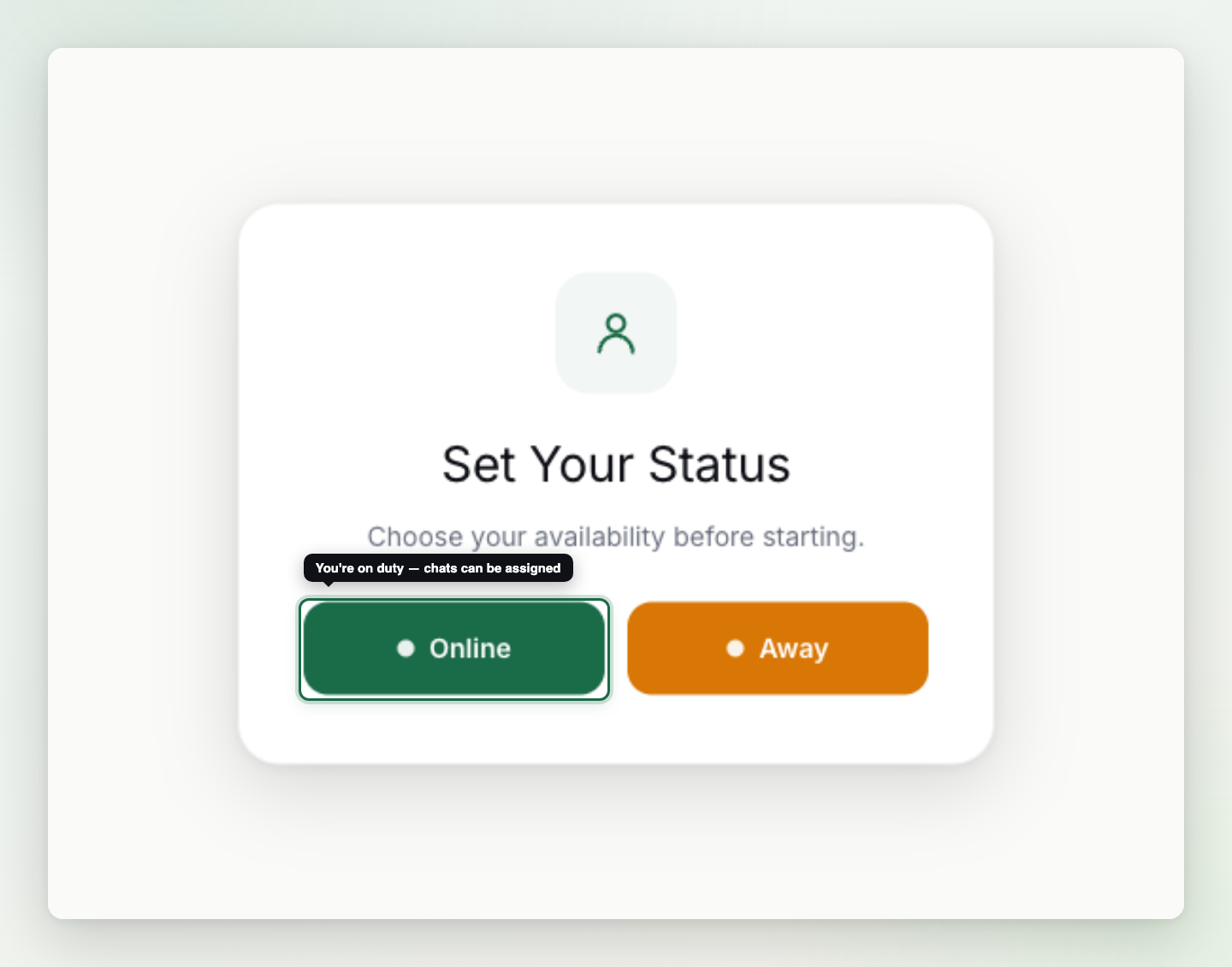
Rule: Conversations are only assigned to agents whose status is online. Remember to go offline at the end of your shift; accounts left online are switched to offline automatically after a while.
Tools that speed you up#
- Canned Responses — create reply templates on the Canned Responses page in the dashboard, then insert them in one click from the composer. Perfect for greetings, closing lines and policy answers.
- Message translation — the translate icon next to messages bridges language gaps: read the customer's message in your language and reply in theirs.
- Tags — label conversations ("pricing question", "complaint") from the conversation menu; manage the tag list on the Tags page. Tags power search and reports.
- Waiting for an agent — the queue section under the chat list shows customers waiting for a human; anyone online can pick them up.
- Feedback — when a chat is closed the customer can leave a rating and comment; they're collected on the dashboard's Feedback page.
Tip: The setup that works best: the assistant carries the routine questions, the team focuses only on handovers. Keep the console open in a tab all day — transfers land instantly.