Connecting a coding agent
Let the agent you already code with read and change your Pommy setup.
Pommy is an MCP server. The agent you already code with — Claude Code, Codex, Cursor, VS Code, or any client that speaks streamable HTTP and OAuth — can connect to it, and from then on it can read your Pommy setup and change it for you: check what a project is missing, fetch the widget's install code and paste it into the site it is already working on, add a knowledge-base document, rewrite the assistant's instructions.
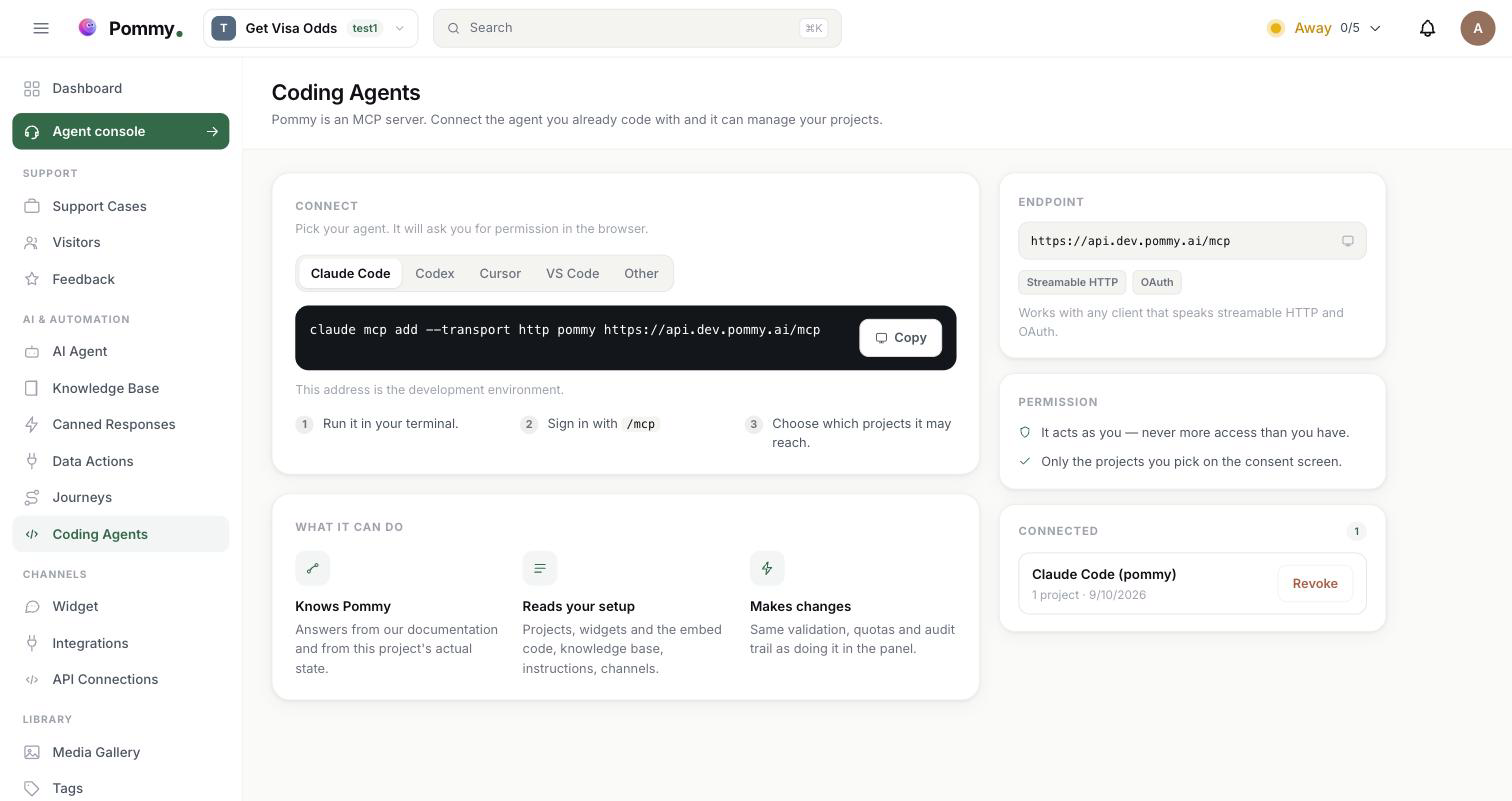
You set this up on the Coding Agents page in the left menu. It is a developer's page and nothing else in Pommy depends on it — if you never open a terminal, skip this section entirely.
Rule: Two MCP directions, easy to mix up: this page is Pommy acting as the MCP server, so your coding agent can use Pommy — while External tools (MCP) in the AI Assistant section is the opposite direction, where your support assistant uses somebody else's MCP server.
What the agent can do#
The connection offers a fixed set of tools. Nothing outside this list can be called, whatever the agent asks for. The ones marked yes change your setup; they are only offered when you granted permission to make changes, and without it the agent does not even see them.
| Tool | What it does | Changes? |
|---|---|---|
pommy_list_projects | The projects this connection may reach, and which Pommy it is connected to — development or live, with the address. Other tools need a project ID; this is where it comes from. | no |
pommy_project_status | The setup state of one project — assistant, knowledge base, widget, channels, domain verification, journeys — and the single next step to take. | no |
pommy_how_to | How a job is done in Pommy, answered together with the current state of your project rather than in general. | no |
pommy_search_docs | Searches these docs, so the agent answers from what Pommy actually does instead of guessing. | no |
pommy_get_agent | The project's AI assistants and their full instructions. | no |
pommy_list_agents | The assistants in short form: active, default, temperature, token limit. | no |
pommy_create_agent | Creates an assistant. Without one, nobody answers your visitors. | yes |
pommy_update_agent | Name, instructions, greeting, temperature, transfer settings, and the persona fields (display name, company, tone, response length). | yes |
pommy_update_agent_instructions | Replaces an assistant's instructions with new text. | yes |
pommy_list_widgets | The project's widgets: name, which one visitors see on your site, brand color and welcome message. | no |
pommy_get_widget | Every setting of one widget — colors, launcher, texts, behavior. | no |
pommy_get_widget_embed_code | The <script> snippet that puts the project's chat widget on a site. | no |
pommy_update_widget | Changes widget settings: appearance, launcher, behavior, welcome and branding text, per-language text. With publish it makes this the widget your site shows, or takes it down. | yes |
pommy_create_widget | Creates a chat widget, optionally with its first settings. If your site already shows a widget, the new one starts switched off until you publish it. | yes |
pommy_delete_widget | Deletes a widget. It refuses the widget your site is showing. | yes |
pommy_list_documents | The knowledge-base documents the assistant can search, where each one came from, and whether it is indexed yet — checked against the search index, not guessed. Paged, with the searchable count up front. | no |
pommy_add_document | Adds a plain-text document. Give it the page address and a second call with the same address updates that document instead of adding a copy. | yes |
pommy_update_document | Rewrites a document's title and content. | yes |
pommy_delete_document | Deletes a document. Not reversible. | yes |
pommy_scrape_url | Reads a web page or a Markdown file and saves it with its address, so the assistant can link to it. Reading the same address again updates the document — no copies. | yes |
pommy_import_urls | Imports up to 20 pages or Markdown files in one call. Safe to repeat with the same list: it keeps a help centre or a docs site in sync instead of duplicating it. | yes |
pommy_list_faqs | The question-and-answer pairs the assistant matches against. | no |
pommy_upsert_faq | Adds an FAQ or edits an existing one. | yes |
pommy_delete_faq | Deletes an FAQ. | yes |
pommy_list_products | The showcase products and services that appear as cards in chat. | no |
pommy_upsert_product | Adds a showcase card or edits one. | yes |
pommy_delete_product | Deletes a showcase card. | yes |
pommy_list_conversations | Recent conversations: channel, status, when. Read-only. | no |
pommy_get_conversation | The messages of one conversation, in order — the only honest way to find out why an answer was wrong. | no |
pommy_list_journeys | Journeys and whether the feature is on for this project; if it is off, what is missing. | no |
pommy_draft_journey | Writes a journey draft. It never publishes, and it refuses to touch a live journey — publishing stays a human decision. | yes |
pommy_list_integrations | The channels connected to the project (WhatsApp, Instagram, Telegram, Shopify, ikas, WooCommerce, Google Calendar) and their status. | no |
pommy_usage | The plan and quota usage — what is left before a limit refuses the next write. | no |
pommy_domain_status | Whether domain verification is enforced and which addresses are verified. The first place to look when the widget does not appear. | no |
pommy_add_domain | Adds a domain and returns exactly what proves you own it: a meta tag, a file, or a DNS record. An agent that edits your site can finish the meta-tag route on its own. | yes |
pommy_verify_domain | Checks the proof. With enforce, it also locks the widget to verified domains — only when you ask. | yes |
There is no tool for anything else: no deleting a project, no billing changes, no team management, no publishing a journey. Reading a conversation is possible because fixing a wrong answer starts with reading it; writing into a conversation as you is not.
Connecting#
- Open Coding Agents and pick your agent
The tabs at the top of the Connect card — Claude Code, Codex, Cursor, VS Code, Other — each show the exact command or file for that client. Copy it from the page; the address is filled in for you.
- Run the command, or save the file
Claude Code and Codex take a one-line terminal command. Cursor and VS Code read a small JSON file — the page shows which file, and its path.
- Sign in
Your agent opens the browser and you sign in to Pommy as yourself. In Claude Code the sign-in starts with the
/mcpcommand; in Codex withcodex mcp login pommy; Cursor and VS Code open the browser on their own. - Choose which projects it may reach
The browser shows Pommy's consent screen. Pick the projects, approve, and the agent is connected.
claude mcp add --transport http pommy https://api.pommy.ai/mcpcodex mcp add pommy --url https://api.pommy.ai/mcp{
"mcpServers": {
"pommy": {
"url": "https://api.pommy.ai/mcp"
}
}
}{
"servers": {
"pommy": {
"type": "http",
"url": "https://api.pommy.ai/mcp"
}
}
}Any other client works too: point it at the same address, https://api.pommy.ai/mcp. It is a streamable HTTP endpoint behind OAuth, and the client discovers everything else — which authorization server to use, which permissions exist — on its own.
Warning: Copy the address from the Coding Agents page rather than from here. The development environment has a different one, and an agent pointed at the wrong environment connects happily but never sees your live projects.
The consent screen#
The browser step is where the permission is actually given, so it asks two things at once: what this application will be allowed to do, and where.
- Which application is asking — the name it registered with, shown at the top. An application Pommy does not recognize never gets this screen.
- What it will be allowed to do — one line per permission it requested: reading your projects, making changes in them, seeing who you are. Read the change line carefully; it is the one that matters.
- Which projects — every project you can reach, grouped by organization. Above six projects a search box appears. Nothing can be approved with none of them ticked.
Ticking a project does not grant anything; it narrows what the agent may touch. You are not handing out access here, you are choosing which part of your own access to lend.
You see this screen every time you connect, even if you have connected the same client before — that is deliberate, because the project list is the thing you may want to change. Your previous choice comes pre-ticked, so re-authorizing is one click if nothing changed.
Permissions and safety#
- It acts as you. The connection carries your own permissions and nothing more — so it can never reach more than you can. If you cannot edit an assistant in the panel, neither can your agent.
- Only the projects you picked. What the agent may touch is your live access and the projects on the consent screen — both, not either.
- Access is re-checked on every call, not remembered from the day you approved. Lose access to a project — you leave the team, your role changes — and the agent loses it in the same moment, with nothing to revoke.
- Changes take the same road as the panel. Everything the agent writes goes through the same procedures the dashboard uses: the same input validation, the same permission checks, the same quota, the same audit trail. A document added from your terminal is indistinguishable from one added by hand — including in the audit log.
- Nothing platform-wide is exposed. The tool list is hand-picked, and no tool that needs platform-administrator rights is on it — not even for an account that has them.
- The connection is yours, not your team's. Connecting your agent does not connect anyone else's, and revoking yours does not touch theirs.
Seeing and revoking connections#
The Connected card on the right of the Coding Agents page lists every agent you have authorized: the name the client registered, how many projects it reaches, and the date you granted it.
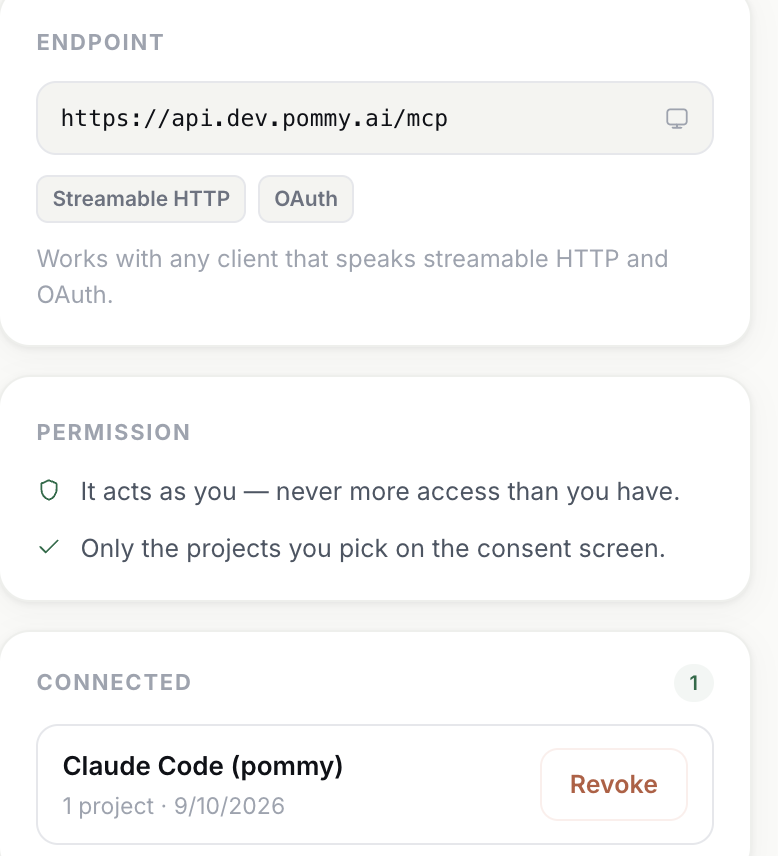
Revoke asks for confirmation and then the agent reaches no project at all. The token it holds may still be valid for a while, but it no longer opens any door: every tool call reports that it can reach nothing. To bring the agent back, start the connection again from your client and pick the projects afresh.
Tip: Revoking is also the clean way to change the project list — although reconnecting from the client is enough on its own, since the consent screen comes back every time.