Docs · 🎧 Live Support
The calendar view
Every appointment the assistant books, live in the console.
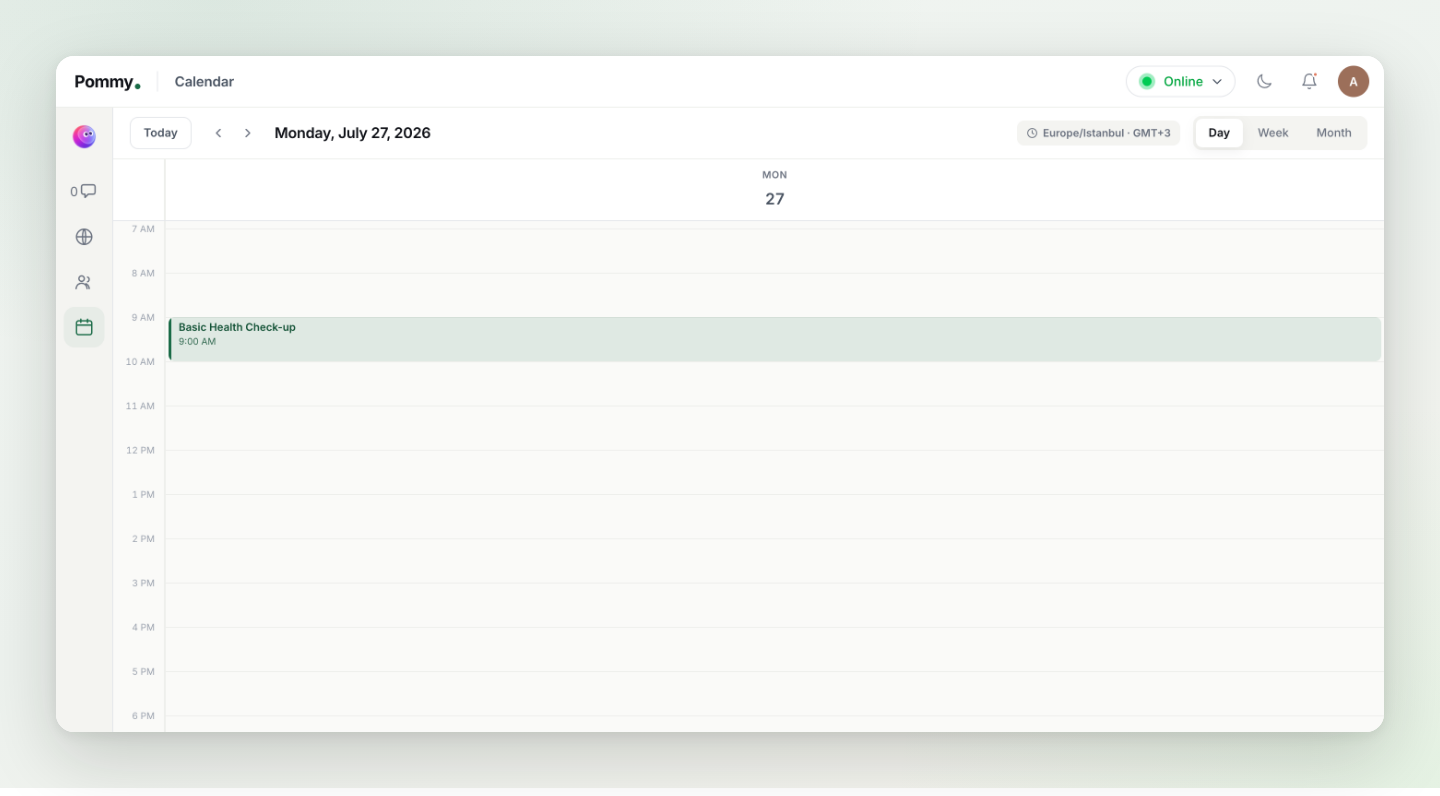
The Calendar icon on the console's left rail opens a full calendar of your appointments — including every booking the assistant makes in chat, which appears here the moment it's confirmed.
What you can do here#
- Switch views — Day, Week or Month from the top right; the mini calendar on the left jumps to any date.
- Filter by provider — the Providers list shows each staff member with their appointment count; pick one to see only their schedule.
- Manual entries — creating events right in the console is coming soon; until then, anything you add in your Google Calendar appears here automatically (the two stay in sync, and Sync now forces a refresh).
- Check the time zone — the indicator at the top (e.g. Europe/Istanbul · GMT+3) tells you which zone the grid uses; it comes from your appointment settings.
Tip: This calendar and your connected Google Calendar show the same appointments — chat bookings land in both. Your team can live in the console without opening Google Calendar at all.