Team members and roles
Sending invites, the built-in roles and custom roles.
You don't have to run Pommy alone: invite your teammates and give each one a role that defines what they can do. Team management lives on two pages in the left menu: Team (members and invites) and Roles & Permissions (roles and their permissions).
Inviting a team member#
- Open the Team page
Go to Team in the left menu; you'll see current members, their roles and pending invites.
- Send the invite
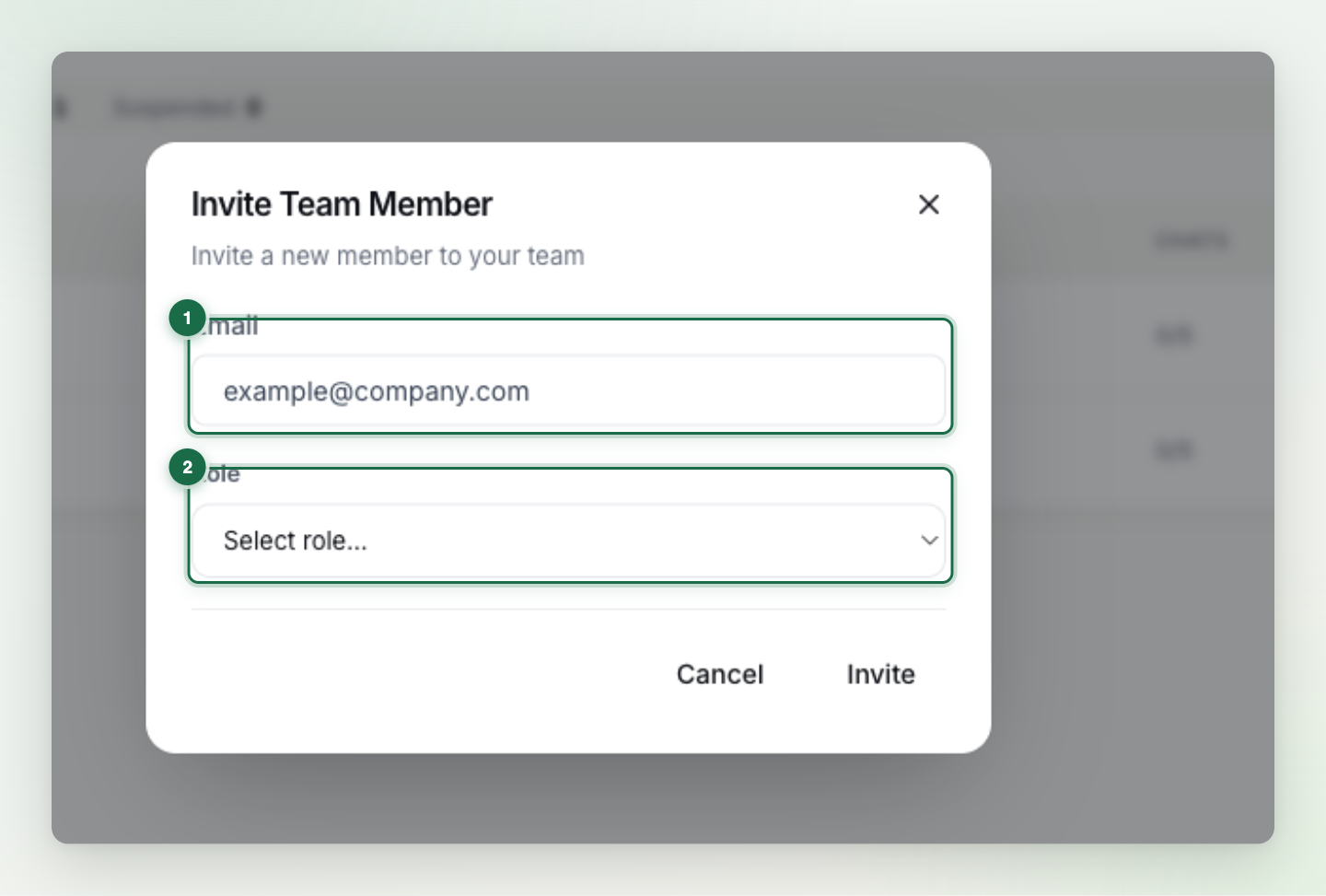
Click the invite button, enter the person's email address and pick a role. The invite goes out by email.
- Wait for them to accept
When they open the link in the email and create their account, they appear in the team list and work with the permissions of the role you chose. Pending invites can be cancelled from the Team page.
The built-in roles and what they mean#
Four ready-made roles cover most teams:
| Role | What they can do |
|---|---|
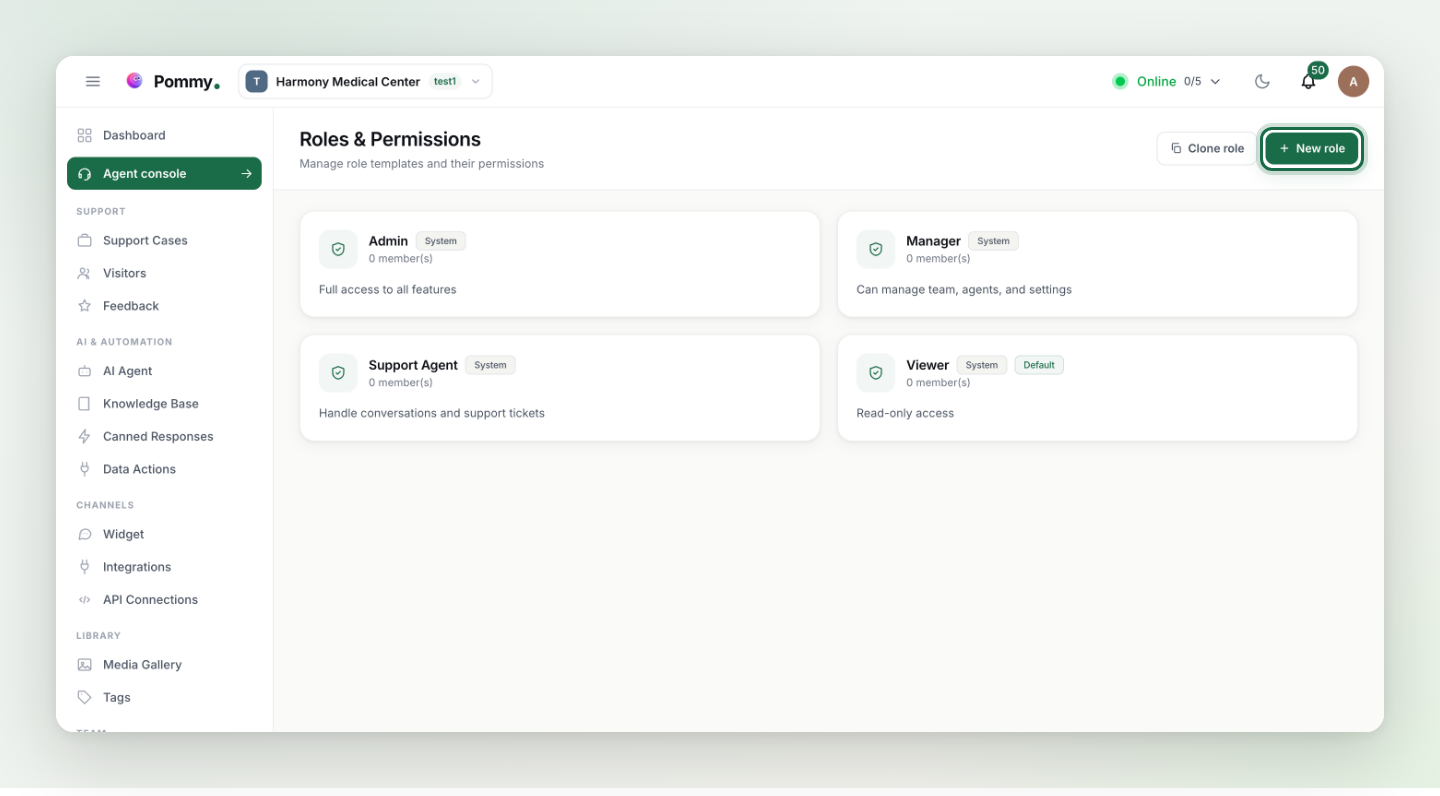
| Admin | Full access to everything: all settings, billing and team management included. The owner's role, and the most powerful one. |
| Manager | Runs the day-to-day: manages the team, the AI assistant, content and settings; handles conversations. |
| Support Agent | The support rep: answers and takes over conversations, works support cases. Can't change settings or the team. |
| Viewer | Read-only: sees conversations and reports, changes nothing. Ideal for newcomers and observers. |
Building a custom role#
If the built-in roles don't fit, create your own from the Roles & Permissions page: name the role and pick its permissions one by one (answering conversations, editing content, viewing reports…). For example, a "Content Editor" role that can only edit the knowledge base.
Rule: Least privilege: give everyone the smallest role that covers their job. Support Agent is enough for a rep; hand out Admin only where it's truly needed.
Tip: Wondering who changed what? The Audit Logs page keeps a record of every change made in the dashboard.