Meet the mascot
The small character in the corner of the dashboard, and the panel behind it.
The Pommy logo floats in the bottom-right corner of the Dashboard page, with a tiny AI badge. It sways a little, blinks now and then and glances around. It is Pommy itself — the same assistant that answers your visitors — and one click opens its panel.
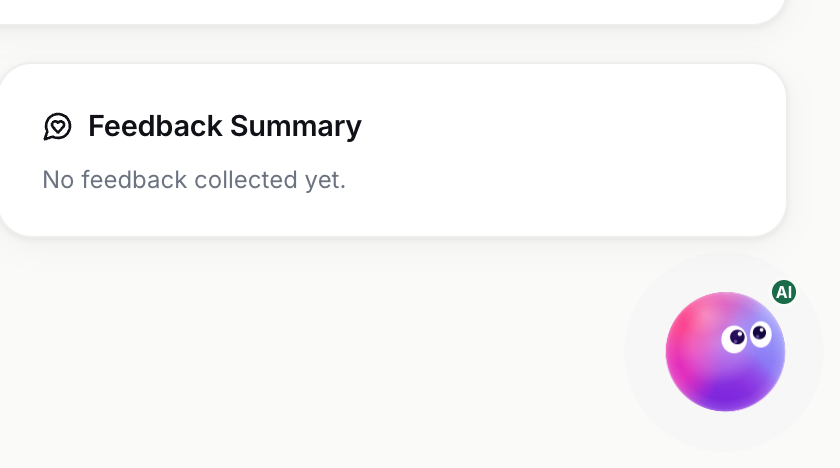
It appears only on the dashboard — the first page in the left menu. The other pages don't have it.
What the panel holds#
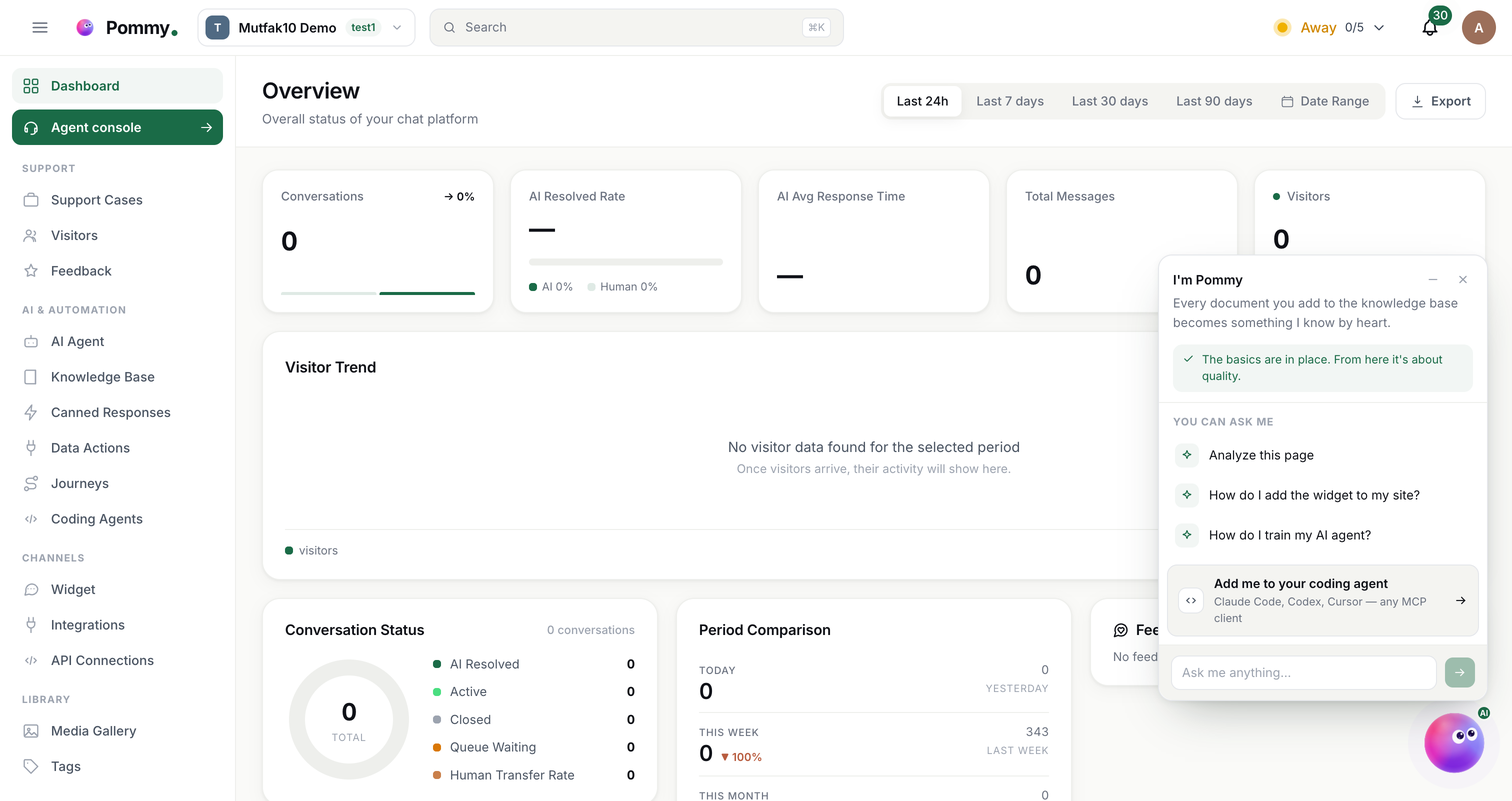
The panel opens beside the character. It says I'm Pommy and adds one line about what it does for you; that line changes each time you open the panel, so over a few visits you see all of them. Below it are three things: what's left of your setup, a few questions you can ask, and a box for a question of your own.
The setup tour#
While your setup is unfinished, the top of the panel is a short checklist — Let's finish the setup — with a count of how far along you are. Four steps, in the order they depend on each other:
- Create an AI assistant — without one there is nobody to answer your visitors.
- Upload knowledge and train the assistant — with an empty knowledge base it can't answer anything specific to your business.
- Create a widget and add it to your site — this is the chat window your visitors see.
- Connect your channels — WhatsApp, Instagram, Shopify, WordPress; the assistant goes wherever your customers already are.
Click a step and you land on that page, with the panel closed behind you. Steps you've finished are ticked and stay clickable — done is not a locked door.
The list isn't worked out in your browser. It comes from your project on the server — the same source a connected coding agent reads when it asks what's left to do, so the panel and your agent never tell you two different things.
There is no "don't show this again". The tour stays for as long as something is missing and goes away on its own once all four steps are done, leaving a single line that says the basics are in place. Because it follows your project rather than this browser, it reads the same on your laptop and on your phone.
Warning: If domain verification is switched on and no domain has been verified yet, the tour tells you so — in that state the widget will not run anywhere.
Asking it something#
Under the checklist are three ready-made questions:
- Analyze this page — sends the numbers currently on your dashboard along with the question, so the answer talks about the same figures you are looking at.
- How do I add the widget to my site?
- How do I train my AI agent?
Clicking one doesn't open a second chat app. It opens the same assistant surface you get with ⌘K, in chat mode, with the question already asked — see Ask Pommy. The box at the bottom of the panel does the same with a question of your own: type it, send it, and the surface opens with it.
Add me to your coding agent#
One row in the panel offers Pommy to your coding agent — Claude Code, Codex, Cursor, anything that speaks MCP. It takes you to the Coding Agents page, where the connection is made: Connecting a coding agent.
Putting it away#
The buttons in the top-right corner of the panel put it away again; the character stays in its corner. There is no setting that removes it from the page.