Appointment settings, field by field
Every rule the assistant follows when booking — on one page.
The appointment settings page (open it from Integrations → the Google Calendar card → Appointment settings) gathers everything the assistant obeys when booking. These aren't suggestions — appointments are opened exactly as defined here. The page has seven tabs:
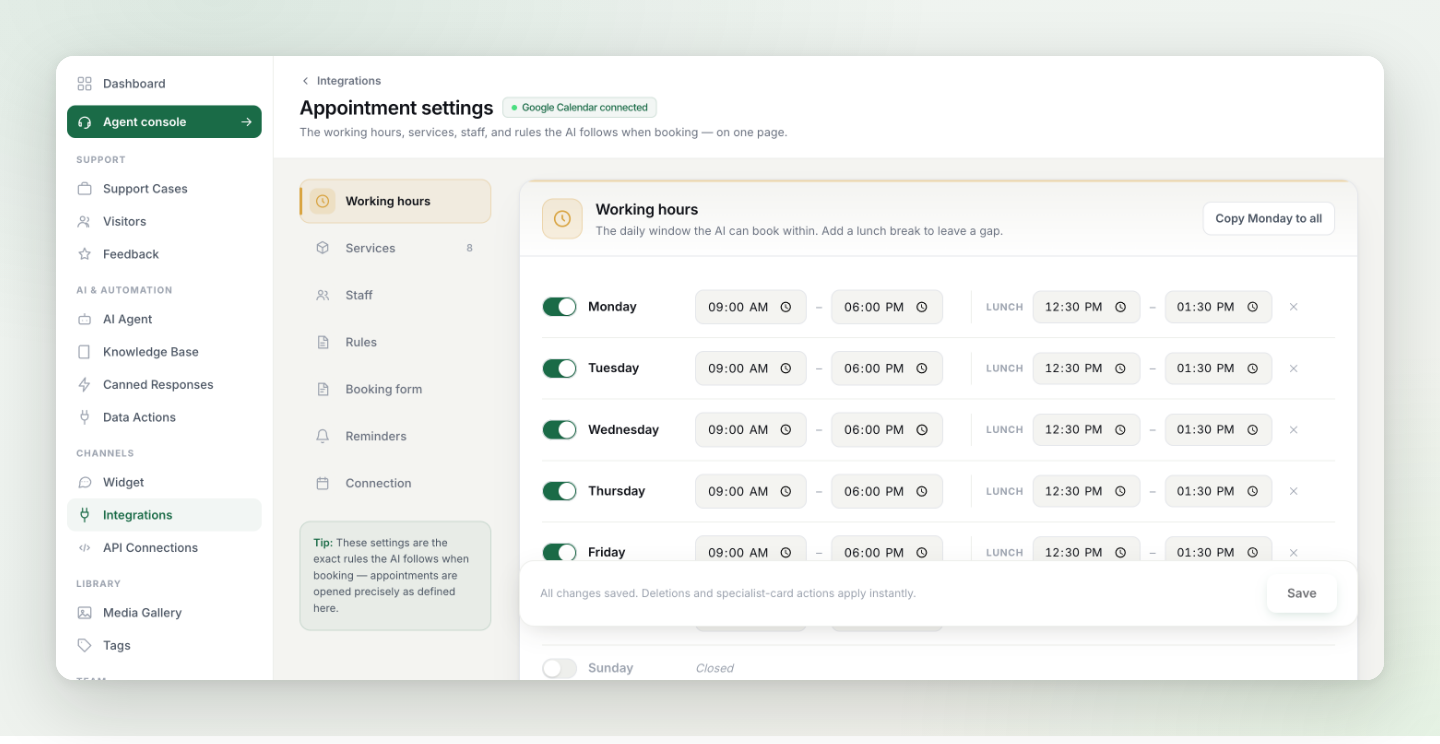
Working hours#
The daily window the assistant can book within, day by day. Add a lunch break to leave a gap in the middle; use copy Monday to all to fill the week in one click; mark a day Closed and it's never offered.
Services and Staff#
Services defines what can be booked — each with its own duration. Staff defines who provides which service; the assistant answers "who's available for X?" from this mapping and books with the right person.
Rules#
| Rule | What it controls |
|---|---|
| Earliest | Minimum notice before the first bookable slot — e.g. 2 hours from now, so nobody books for five minutes later. |
| Latest | How far into the future customers can book, in days. |
| Slot interval | The gap between offered start times (e.g. every 30 minutes). Appointment length itself comes from the service. |
| Buffer before / after | Blocked minutes around each appointment — preparation or cleanup time the assistant keeps free. |
Booking form#
What the assistant must collect before finalizing: Full name, Email and Phone can each be required, and you can add custom fields (e.g. "National ID", "Insurance No") — the assistant asks for them in chat and saves the answers into the appointment note.
Reminders#
Turn on the email reminder and customers automatically receive an email before their appointment — fewer no-shows without lifting a finger.
Email confirmation#
Also under Reminders: Email confirmation for bookings. With it on, an appointment booked through the assistant is not final immediately — the time is held for 15 minutes while the customer clicks a one-time confirmation link sent to their email. Click it → the appointment is confirmed and lands on the calendar. No click → the hold is cancelled automatically and the time opens up again.
- Why: it filters out mistyped and never-serious bookings before they block your calendar.
- Email becomes required — the assistant always asks for the customer's email while this is on. You'll see the Email field in Booking form shown as locked; that's this setting enforcing itself.
- Appointments your team creates from the dashboard skip confirmation — a human already vouched for those.
- The email and the confirmation page speak the customer's chat language automatically, wherever the customer is — or pin one language for every email under Reminders → Email language.
Warning: The trade-off is real: a customer unwilling to share an email cannot book while this is on. Turn it on when no-shows and junk bookings cost you more than that friction.
Connection#
Shows which Google account and calendar are connected, and holds the time zone setting the whole system books in. If suggested times ever look shifted, check here first.
Tip: After changing a rule, run one test booking from the widget — you'll see the new rule applied in the very next suggestion. Changes here apply instantly; no re-sync needed.