The assistant in the search box
Find a page, search the docs, or ask a question — all in the same box.
The Search button at the top of the dashboard — ⌘K on a Mac, Ctrl K everywhere else — opens one box that does three things: it jumps to a dashboard page, it searches this documentation, and it answers questions. There is no separate chat screen. The same box turns into the conversation and turns back again.
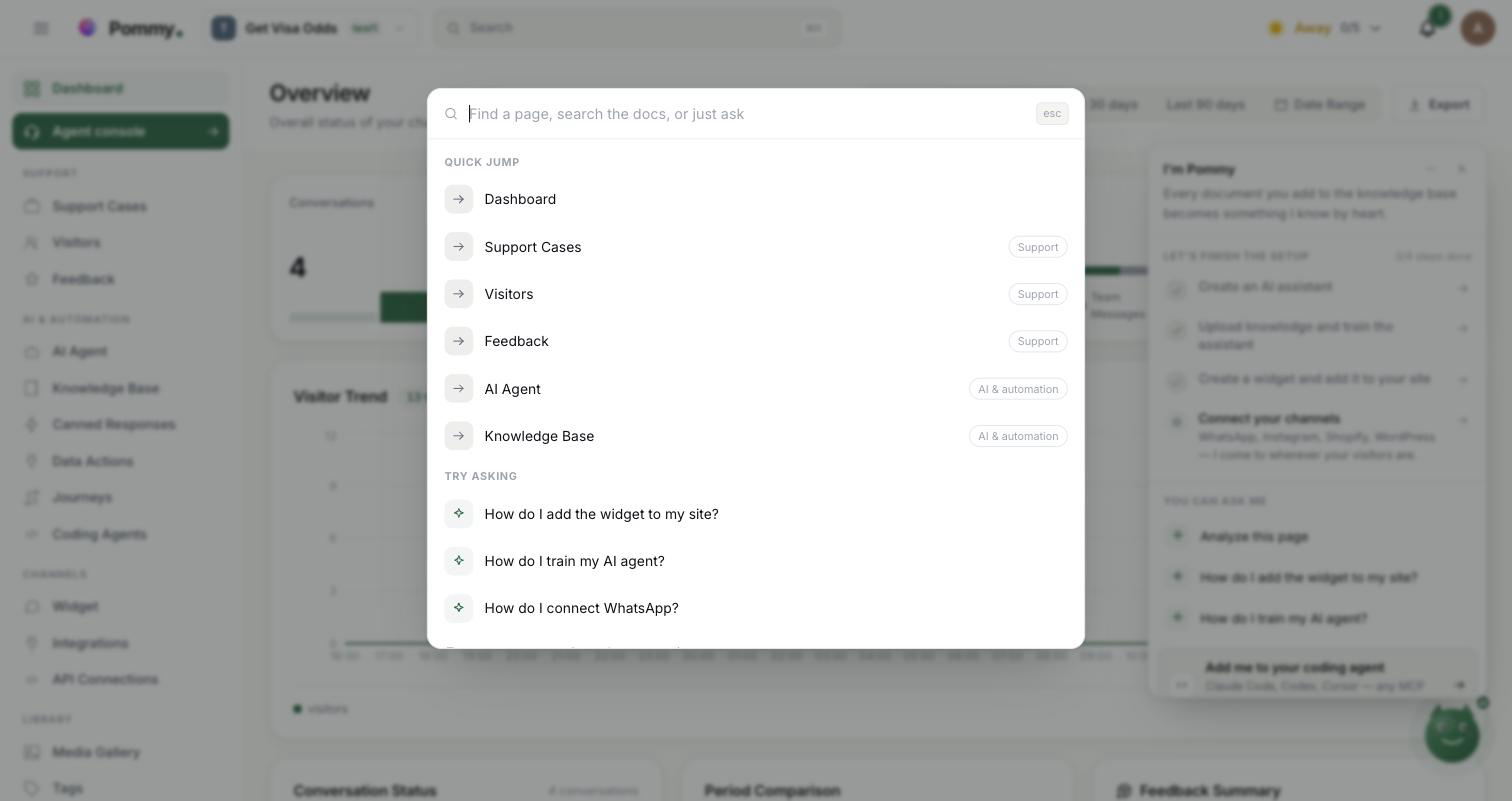
Finding a page or a document#
Start typing. The results always come in the same order, so you learn where to look:
- Pages — up to six dashboard pages, each with the menu group it belongs to. Only pages you can actually open appear here. Matching also uses the page's internal English name, so typing
widgetfinds it whether your panel is in English or Turkish. - Documentation — up to four pages from this guide, with their one-line summary and their section.
- Ask Pommy — always the last row, carrying exactly what you typed. It is there even when nothing else matched.
The arrow keys move through the rows, Enter opens the selected one, and Esc closes the box. If nothing matches you get one line — *No page or document matches that — You can still ask Pommy*.
With an empty box you see Quick jump — six frequently used pages — and Try asking, three example questions: *How do I add the widget to my site?*, *How do I train my AI agent?*, *How do I connect WhatsApp?* Clicking one asks it straight away.
Asking a question#
There are three ways into the conversation: pick the Ask Pommy row, click one of the Try asking examples, or click one of the mascot's prompts on the dashboard — those open this same box with the question already sent, and are described in The dashboard mascot.
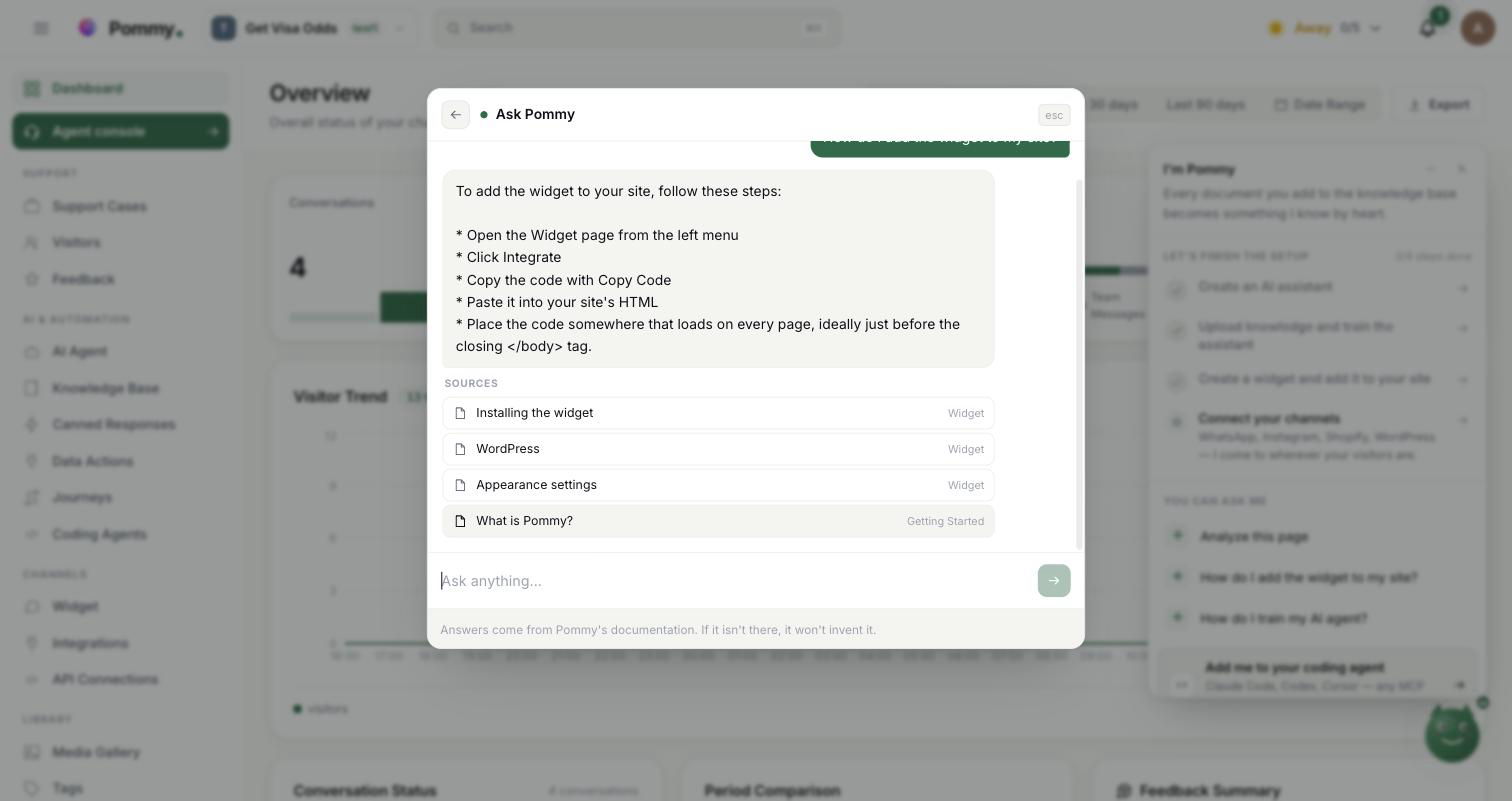
The header becomes Ask Pommy, the body becomes the conversation, and the input drops to the bottom. While it works you see *Reading the docs…*; then the answer arrives, followed by Sources.
- Sources are the documentation pages the answer came from. Click one and it opens — the box closes and you land on that page.
- Keep asking in the box at the bottom. Within one conversation it remembers the last few turns, so a follow-up question does not have to repeat the context. A message can be up to 500 characters.
- Back to search — the arrow at the top left returns you to the search list. Esc closes the box entirely.
- Every opening starts empty. The conversation is not kept; open the box again and you begin a fresh one.
The line under the input says the same thing this page does: *Answers come from Pommy's documentation. If it isn't there, it won't invent it.*
Where the answers come from#
Your question is searched against this documentation. At most four pages are picked, and from each one an excerpt is taken from around the part that matches your question — not the opening paragraph, and not the whole page. Those excerpts are what the answer is written from, and they are what the Sources list points at.
Both language editions of the documentation are searched, and whichever one recognizes more of your words decides which is used. So a Turkish question works with an English panel, and the other way round — you do not have to match your question to the interface language.
That is the whole of its reading. It does not see your knowledge base, your products, your customers' conversations, your team or your billing, and it does not search the internet. The only exception is the live numbers described in the next section, and those are handed to it by the dashboard.
When nothing in the documentation matches, it does not guess: it says it found nothing and suggests you rephrase or open the related tab in the panel. Answers are deliberately short — two to four sentences, at most four bullets — because the source page is one click away.
Rule: This assistant only reads and explains. It cannot change anything in your account: it creates nothing, edits nothing, deletes nothing, and sends no message to your customers. For an assistant that can change your setup, see Connecting a coding agent.
Your own numbers#
One question arrives with live data attached: the mascot's Analyze this page prompt on the dashboard. It sends the assistant the same summary figures the dashboard is showing you, for the last 24 hours:
- Visitors.
- Conversations in total, plus today's and yesterday's.
- Messages in total, split between the AI and your team.
- How many conversations the AI resolved, and how many went to a person.
- The human takeover rate.
- The satisfaction score and how many pieces of feedback it rests on.
- How many people are waiting in the queue.
These are the numbers already on your screen — the dashboard passes them across as text rather than having them counted a second time, so the assistant and the page can never quote you two different figures. For this question the documentation is not searched at all, so the answer has no Sources list under it. The assistant is told to use the figures exactly as given and to invent none.
Tip: Nothing else you ask carries your numbers with it. If you type a data question into the box yourself, it is answered from the documentation like any other question — for a reading of your figures, use the mascot's prompt.
Languages#
The assistant works in English and Turkish, and answers in the language you asked in — not the language the panel happens to be in. It writes plain text with no formatting, and it names places in the dashboard the way you see them on screen.